
Creating a customized HTML template with SharePoint page layout
In SharePoint there is a concept of creating pages using page layout. We can provide a template using page layout that has the look and feel of a page. Each page layout is associated with some content type, and each content type has fields where the page content is stored. And as we design a page layout, we can add field controls using Microsoft Office SharePoint Designer. Consider a requirement to provide a sample HTML with layout for creating a page, where the number of fields are not fixed. On the page, the user can add images, PowerPoint presentations, links to external sources. Also, the user can add multiple single line and multiline text fields. But there is a limitation on adding HTML controls; on a single page users cannot add multiple Publishing HTML controls. Now we see the steps to creating a layout with HTML: Open SharePoint Site using SharePoint designer. On the left menu, select Page Layout Library. Click on New Page Layout. A popup will open up. Select Publishing Content Type from the Content Type Group. Enter the URL Name and Title. In the place holder main section add “PublishingWebControls:RichHtmlField” control. In this add the tag “html” and put the sample HTML that you want as a template. READ MORE ARTICLES HOW TO ACCESS SHAREPOINT REST API USING OAUTH HOW TO CREATE AND DEPLOY WORD ADD-ON IN SHAREPOINT Save the page layout. Now create a page using the above page layout. Open Pages library from Site Content. On the ribbon, Click on Files-> New document-> Pages. Now enter the title, URL Name and select the page layout. Click Create. This will create a page in the page’s library with default HTML. To view the default HTML, open the page and click on the Edit button from the Ribbon. The default HTML template will be visible on the page. Now, edit the content in a predefined template and save the page. And here you get a new page created from the predefined template. NEED HELP IN SHAREPOINT? CONTACT US NOW Meeta Chopra SharePoint Development Architect Advaiya Solutions Inc Udaipur, Rajasthan, India TALK TO OUR EXPERT! CALL NOW CALL NOW
.Net Managed Client Side Object Model for Project Online

The Project Server client-side object model implements common server functionality. The Project Server CSOM includes a Microsoft .NET CSOM and a JavaScript object model (JSOM). In addition, the CSOM includes an OData service that enables a REST interface. Microsoft.ProjectServer.Client namespace: CSOM can be accessed from on-premises Project Server installation and Project Online via Microsoft.Project.Server.Client namespace. It implements the key functionality for the major entities such as Task, Project, EnterpriseResource, andAssignment. It also takes in additional entities such as LookupTable, CustomField, EventHandler, WorkflowActivities, and QueueJob, which support other common Project Server functionality. The CSOM is an API that is built on top of the PSI; it does not replace the PSI or implement all of the PSI functionality. In CSOM extensions, the ProjectContext object provides the entry point to server content and functionality. The .NET CSOM uses the Microsoft.ProjectServer.Client.ProjectContext object to provide direct access to core Project Server objects in the current Project Web App site collection. Below is the list of ProjectContext properties that represent Project Server objects. You can use these objects to retrieve other Project Server entities. CustomFields EnterpriseProjectTypes EnterpriseResources EntityTypes EventHandlers Events LookupTables Phases Projects Stages WorkflowActivities WorkflowDesigner Steps for creating a CSOM project in Visual Studio: Step 1: To create a CSOM project in Visual Studio Copy the following assemblies from the %ProgramFiles%Common FilesMicrosoft SharedWeb Server Extensions15ISAPIfolder to your development computer: Microsoft.ProjectServer.Client.dll Microsoft.SharePoint.Client.dll Microsoft.SharePoint.Client.Runtime.dll .The Microsoft.ProjectServer.Client.dll assembly has dependencies on the related SharePoint assemblies. In Visual Studio, create a Console application and name the application, say CSOM_ForProjectOnline. In Solution Explorer, set references to the following assemblies: Microsoft.ProjectServer.Client.dll Microsoft.SharePoint.Client.dll Microsoft.SharePoint.Client.Runtime.dll In the Program.cs file, edit the using statements, as follows: using System; using System.Collections.Generic; using System.Linq; using System.Text; using System.Threading.Tasks; using Microsoft.ProjectServer.Client; using Microsoft.SharePoint.Client; using System.Security; Step 2: Get the Project Context The code uses the pwaPath, userName & passWord constant along with static ProjectContext object. class Program { const string pwaPath = “https://ServerName/pwa”; //Change the path to your Project Web App instance const string userName = “LoginName@DomainName.com”; //PWA Username const string passWord = “password”; //PWA Password static ProjectContext projectContext; //Initialize the ProjectContext Object static void Main(string[] args) { } } Add SharePointOnlineCredentials class which represents an object that provides credentials to access SharePoint Online resources. static void Main(string[] args) { projectContext = new ProjectContext(pwaPath); SecureString securePassword = new SecureString(); foreach (char c in passWord.ToCharArray()) { securePassword.AppendChar(c); } projectContext.Credentials = new SharePointOnlineCredentials(userName,securePassword); } Firstly, let’s take an example to get list of Published Projects: For this we create a new function ListPublishedProjects() and call it from main method as follows: private static void ListPublishedProjects() { projectContext.Load(projectContext.Projects); //Load Project from PWA projectContext.ExecuteQuery(); Console.WriteLine(“nList of all Published Projects:n”); foreach (PublishedProject pubProj in projectContext.Projects) { Console.WriteLine(“nt{0}”, pubProj.Name); } Console.ReadLine(); PublishedProject class represents a project that is published on Project Server. Build and run the solution, and the output will be obtained on console as this: Create New Project using CSOM: Add new method CreateNewProject() to your Console Application as follows: private static void CreateNewProject() { ProjectCreationInformation newProj = new ProjectCreationInformation(); newProj.Id = Guid.NewGuid(); newProj.Name = “Test Project”; newProj.Description = “This Project is created via CSOM”; newProj.Start = DateTime.Today.Date; newProj.EnterpriseProjectTypeId = new Guid(“09fa52b4-059b-4527-926e-99f9be96437a”); PublishedProject newPublishedProj = projectContext.Projects.Add(newProj); projectContext.Projects.Update(); projectContext.ExecuteQuery(); } Here ProjectCreationInformation class specifies the information that is required to create a project. Get list of Published Tasks of a Project using CSOM: Add new method GetTasksOfProject () to your Console Application as follows: private static void GetTasksOfProject() { projectContext.Load(projectContext.Projects); //Load Projects from PWA projectContext.ExecuteQuery(); Guid ProjectGuid = new Guid(“b7dfde50-7a2d-e611-9bf8-681729bb2204”); var project = projectContext.Projects.First(proj => proj.Id == ProjectGuid); //Here you can also use the property proj.Name projectContext.Load(project.Tasks); //Load Tasks of Project from PWA projectContext.ExecuteQuery(); Console.WriteLine(“Tasks:n”); foreach (PublishedTask task in project.Tasks) { Console.WriteLine(“nt{0}”, task.Name); } Console.ReadLine(); } Output is obtained on console: Create New Task using CSOM: Add new method CreateNewTask() to your Console Application as follows: private static void CreateNewTask() { Guid ProjectGuid = new Guid(“b7dfde50-7a2d-e611-9bf8-681729bb2204”); var Project = projectContext.Projects.GetByGuid(ProjectGuid); var draftProject = Project.CheckOut(); TaskCreationInformation task = new TaskCreationInformation(); task.Id = Guid.NewGuid(); task.Name = “New Task”; task.Start = DateTime.Today.Date; task.IsManual = false; DraftTask draftTask = draftProject.Tasks.Add(task); draftProject.Update(); draftProject.Publish(true); //Publish and check-in the Project projectContext.ExecuteQuery(); } Here TaskCreationInformation class specifies the information that is required to create a task. Update Project Level Custom Field using CSOM: Add new method UpdateProjectCF() to your Console Application as follows: private static void UpdateProjectCF() { Guid CustomFieldGuid =new Guid(“99072634-db70-e611-80cb-00155da46e22”); Guid ProjectGuid = new Guid(“3531cb1f-51ce-4a27-a45a-590339b99aed”); var proj = projectContext.Projects.GetByGuid(ProjectGuid); var draftProj = proj.CheckOut(); projectContext.Load(projectContext.CustomFields); //Load Custom Fields from PWA projectContext.ExecuteQuery(); var CustomField = projectContext.CustomFields.First(CF => CF.Id == CustomFieldGuid); //Here you can also use the property CF.Name var CustomFieldValue= “New Value”; string internalName = CustomField.InternalName.ToString(); //Get internal name of custom field draftProj.SetCustomFieldValue(internalName, CustomFieldValue); //Set custom field value draftProj.Publish(true); //Publish and check-in the Project projectContext.ExecuteQuery(); } Here customField.InternalName is the internal name of the custom field, reserved for internal use. In this code, internalName will be “Custom_99072634db70e61180cb00155da46e22”. And the method draftProject.SetCustomFieldValue(internalName, CustomFieldValue) which sets a custom field on the project where CustomFieldValueis the value to be updated for the custom field. Update Task Level Custom Field using CSOM: Add new method UpdateProjectCF() to your Console Application as follows: private static void UpdateTaskCF() { projectContext.Load(projectContext.Projects);//Load Projects from PWA projectContext.ExecuteQuery(); projectContext.Load(projectContext.CustomFields);//Load Custom Fields from PWA projectContext.ExecuteQuery(); Guid ProjectGuid = new Guid(“3531cb1f-51ce-4a27-a45a-590339b99aed”); Guid TaskGuid = new Guid(“56b0ba40-da78-e611-80cb-00155da4672c”); Guid CustomFieldGuid = new Guid(“3c3dfd8b-da78-e611-80cb-00155da4672c”); var project = projectContext.Projects.GetByGuid(ProjectGuid); DraftProject draftProject = project.CheckOut(); //CheckOut Project to make it editable projectContext.Load(draftProject.Tasks);//Load tasks of Project projectContext.ExecuteQuery(); var taskToEdit = draftProject.Tasks.First(task => task.Id == TaskGuid);//Get the task to be updated, Here you can also use the property task.Name var CustomField = projectContext.CustomFields.First(CF => CF.Id == CustomFieldGuid); var CustomFieldValue = “New Value”; string internalName = CustomField.InternalName.ToString();//Get internal name of custom field taskToEdit[internalName] = CustomFieldValue;//Set custom field value draftProject.Publish(true);//Publish and Check-in the project projectContext.ExecuteQuery(); } Hope you find this information helpful. In my upcoming blog,
How to configure Project Server default reporting

This post is about how to configure Project Server 2013 default reporting service. Project Server 2013 on premise have Business Intelligence Center into each instance of Project Web App, which provides Out-of-box report for Project Server. There are a few configurations required to run these reports. Here, I am going to show the configurations to run these reports. In the left Navigation of PWA (Project Web App), there is a link for Report Library that shows Project Server out of box reports. When I tried to run this report, I got the below shown error: After a research and few findings, I got it working; let’s see how. To run these reports, Excel Services and Secure Store Service are the prerequisites. Start the Excel Calculation Services service Go to Central Administration -> System Settings section -> click Manage services on server. Click the Server drop-down list, and then click Change Server and choose the appropriate server. Start Excel Calculation Services. Create an Excel Services service application Go to Central Administrator -> Application Management -> Manage service applications Check Excel Service Application if its running or not. Create new Excel Service Application. Click New -> click Excel Services Application. Provide a name and select the Create new application pool option and type a name for the application pool in the text box. Select the Configurable option and provide the account name for running the application pool as shown below and Click OK. Add a trusted file location and data connection libraries Go to Central Administrator -> Application Management -> Manage service applications Click on Excel Services service application that we created in the step above. Doing so will open up the page below: Click on Trusted File Locations, Add the location of Report Library from PWA Instance as shown Below and also check Trusted Children checkbox while adding Trusted File Locations – Location will be the url of your report Library in Project Web App Click on Trusted Data Connection Libraries, and add the location of data connection library from PWA Instance as shown below: Start Secure Store Service Go to Central Administration -> System Settings section -> click Manage services on server. Click the Server drop-down list, and then click Change Server and choose the appropriate server. Start Secure Store Service. Start Secure Store Service Application Go to Central Administrator -> Application Management -> Manage service applications. Create New -> Secure Store Service. Click on Secure Store Service that we created; this will show a message to add a new target application as shown below Important: The sample reports included with each instance of Project Web App are configured to use a Secure Store target application called ProjectServerApplication. You must create this target application for the sample reports to work. Create a new target application Enter Target Application ID as “ProjectServerApplication” Enter Display Name box, and type a name for the Secure Store Target Application. In the Contact Email box, type an email address. From the Target Application Type drop-down list, select Group. Click Next. On the ‘specify the credential fields for your Secure Store Target Application’ page, click Next. On the ‘specify the membership settings’ page, perform the following steps: In the Target Application Administrators box, type the name of the user who will administer this target application. In the Members box, type the name of the domain group you created for report viewers. Click OK. On the Secure Store Service Application page, select the check box for the target application that you just created. On the ribbon in the Credentials section, click Set. In the Set Credentials for Secure Store Target Application (Group) dialog box, type the user name and password of the account you created for the secure store target application. Now run the reports from Project Web App, and there you are!
SharePoint 2016 & Project Server install for single server setup
In a traditional farm topology SharePoint, the common architecture in small and medium-sized environments is the two-tier design. This design utilizes two servers: one for the web front-end and application services and the other for database services with separate Active Directory Server. Now with SharePoint 2016, we have – MinRole, which is very similar to the other topology designs that we have been using with SharePoint 2013. We will discuss more about MinRoles while we install the same. [ Empower executives and employees across your organization to connect, converse, discover and work together at one central location to save time, increase productivity and boost engagement ] Here, we are installing SharePoint server 2016 along with Project server 2016 in a single server farm environment, where we have separate Active Directory and separate SQL Database server that is well suited for any small or medium-sized environments. Before proceeding to install SharePoint server 2016, we need to make sure our environment meets all of the pre-required configuration. MORE RELATED ARTICLES HOW TO EXPORT AN OUT OF THE BOX (OOTB) LIST VIEW WEB PART IN SHAREPOINT HOW TO DEVELOP & BIND CUSTOM TEMPLATE WITH CUSTOM CONTENT TYPE IN SHAREPOINT Software and Hardware Requirements- Along with the above requirements, Microsoft SharePoint products also require to install the following on a server farm: o Windows Management Framework version 3.0 o Application Server Role o Web Server (IIS) Role o Microsoft .NET Framework 4.5.2 o Update for .NET Framework 4(KB2898850) o SQL Server 2012 Service Pack 1 Native Client o Microsoft Identity Extensions o Microsoft Sync Framework Runtime v1.0 SP1 (x64) o Windows Server AppFabric 1.1 o Windows Identity Foundation v1.1 o Microsoft Information Protection and Control Client (MSIPC) o Microsoft WCF Data Services Service Account Requirement: Account Account Name and Purpose Requirements Server farm account or database access account We are using the username – SPAdmin The server farm account is used to perform the following tasks: SharePoint Products Configuration Wizard Configure and manage the server farm. Act as the application pool identity for the SharePoint Central Administration website. Domain user account Member of the local administrators group on each server. SQL Server login on the computer that runs SQL Server. Additional permissions are automatically granted for the server farm account on Web servers and application servers that are joined to a server farm. The server farm account is automatically added as a SQL Server login on the computer that runs SQL Server. The account is added to the following SQL Server security roles: dbcreator fixed server role securityadmin fixed server role db_owner fixed database role for all SharePoint databases in the server farm Install SharePoint prerequisites: • Login into the server with SPAdmin user. • Download and install SharePoint prerequisites from the SharePoint 2016 setup. • Run the setup as administrator, and choose install software pre-requisites. • Click on Next. On the next window, select “I accept the terms…” and click on Next. • Click on Finish to restart. After restarting, the pre-requisite tool will resume with the remaining installation. • After the installation is completed, the summary screen will show the status as below: • Click onFinish • Click on Install SharePoint Server. • Enter the Product Key and click on Continue • Click on “I accept the terms…” and click on Next • Choose the file location where you want to put your SharePoint configuration file. • Once the installation is done, click on Closeto start the configuration wizard. • When the SharePoint is installed, you will automatically be prompted to run the SharePoint 2016 Products Configuration Wizard, click on Next. • Choose Yes to restart the services and continue with the configuration wizard. • Select Create a new server farm option, and click Next. • On the next page, enter the configuration database name, database server name and user account details and click Next. Now you will get a new specific server role wizard which is also known as ‘MinRole’. In the earlier version of SharePoint, for a large SharePoint deployment plan, you needed to install SharePoint services with specific roles. For example, if you wanted all your end user requests to be placed on one server, then Web Front-End (WFE) server was used to handle your end user requests and similarly for the APP server, Search server, and Cache server. This complete process was quite complex and time taking. Now, you no longer have to worry about the services which should be started on which servers. By deploying your farm in a recommended MinRole topology, you can focus on what functionalities are needed to be enabled in your farm and let SharePoint take care of the rest. SharePoint 2016 server have six server roles as following: • Front-end: Services and components that serve for end user request are placed on web front end roles. • Application: Services and component that serve backend request like search crawl request are placed on application roles. • Distributed Cache: This role is assigned to servers to load balance end user requests among the front ends. • Search: This role is for services and components that are responsible for search indexing and crawling. • Custom: This role is reserved for services that needed to be isolated from other 3rd party application services. • Single-server farm: It doesn’t include SQL Server express. It includes all service application, services and components required for a single server farm. It is meant for the development, testing or small production environment. The first five roles are for multi-server farm environment and the last role is for a single server farm. Please note that while you select ‘Minrole’, either it would be a multiple server farm or a single server farm. If you are selecting a single server role here, then you will not be able to extend it into multiple server farm in future. Specify a port number for the Central Admin or you can use the default one. Also select the NTLM installation mode at this point, and press Next. • This wizard would take 20
SharePoint Workflow: Update list item across other site list
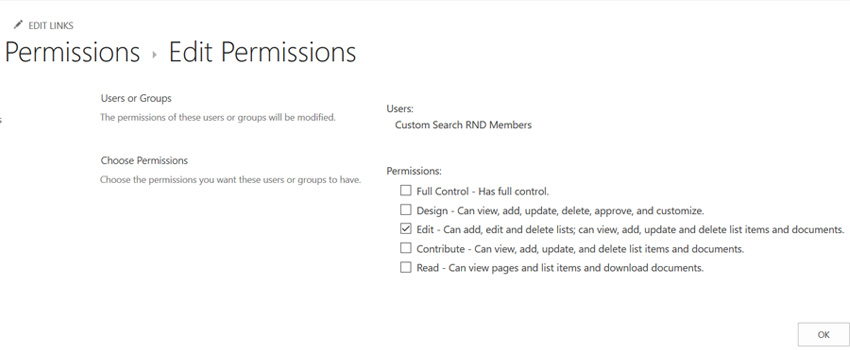
Recently, in one of my projects there was a requirement to create a SharePoint list workflow that triggers when an item is created, and that should result in creating a new list item on another SharePoint list which is created on some other SharePoint instance. I knew the default copy list item activity will not work in this scenario as both lists are not on the same SharePoint site. The straight forward solution to this on top of my mind was to use ‘Call HTTP Service’ activity by calling SharePoint REST services with POST method, and create the item on another list. But this required to run the workflow with elevated permissions.[ Empower executives and employees across your organization to connect, converse, discover and work together at one central location to save time, increase productivity and boost engagement Know more at: Office 365 Intranet ] In this blog, I will first talk about the required configuration to do this cross site stuff and then brief out the steps to call the SharePoint Rest Service: Enable workflow elevated permissions – Below are the high-level steps to do enable the workflow: Allow the workflow to use app permissions in a SharePoint Server 2013/Online site. Grant full control permission to the workflow. Wrap the call action inside app step. You may follow the detailed steps from Workflow with elevated permissions by using the SharePoint 2013 Workflow platform Note: You will need to enable the workflow elevated permissions on both the sites. I followed the below process: Get the App Id from the first site where the List workflow is created to Call HTTP Service as below Go to Site Settings, under Users and Permissions, and click Site app permissions. On the permission page, the App Identifier column displays the value. Here, copy the GUID value before @ symbol. With this App Id, enable the workflow elevated permissions where the SharePoint List workflow is created using this link – Workflow with elevated permissions by using the SharePoint 2013 Workflow platform Navigate to another SharePoint site where the list item is to be created [Note: This is required only when your lists are not on same site/site collection] Use the App Id you get in step 1 from first site and perform step 2 on this site. More Interesting Read SHAREPOINT LIST WORKFLOW: CREATE OR UPDATE LIST ITEM ON ANOTHER SHAREPOINT SITE LIST HOW TO ACCESS SHAREPOINT REST API USING OAUTH Get the target metadata type for HTTP Call: To do this you need the Odata service URL of the list where you need to create the list item. Use the below link and replace placeholders with actual values https:////_api/web/lists/getbytitle(”)/items Navigating this link displays xml/json in this search ‘ Now you are done with the required configurations to use Call HTTP Service activity to create item on another SharePoint site list. For calling the SharePoint REST Service, you may refer this link – Using SharePoint REST services from workflow with POST method, which greatly helped me to quickly configure the workflow. The changes to do in the created workflow are: Use the service URL https:////_api/web/lists/getbytitle(”)/items of another site where you need list item to be created. Keep the ‘Call HTTP Service’ activity in the App Step. While configuring the Build dictionary which we call metadata, the type value should be the term value you get in the section ‘Get the target metadata type for HTTP Call’ instead of SP.Data.WorkflowItemsListItem Once you are done with this, save and publish the workflow. Now your workflow is ready to test. When you create/update (depending on your configuration) a list item in current SharePoint list, it will create a list item in another SharePoint site list, the URL of which you configured in the workflow. And this way you can update the list items on external SharePoint sites. Note that this process works on SharePoint 2013 List workflows only, as earlier versions do not have Call HTTP Service activity available. Need Help in Sharepoint? Contact Us Now!
Create calculated measures in Power BI desktop

Power BI Desktop gives you the right way to deal with your data in just a few clicks. However, the data does not contain everything you need to create reports. This is where measures come into play and will certainly help you to get most out of Power BI. You can use measures in the most common data analysis, such as sums, averages, counts or in advanced calculations. With the help of Data Analysis Expressions (DAX) formula, you can create a measure having calculated in response to your data and interaction with your reports. This article is for Power BI users already familiar with using Power BI Desktop to create more advanced models. Insight on measures The Power BI desktop allows you to create and use measures in Report View or Data View. The created measures appear in the fields list with a calculator icon. Measures can be named with any required name based on your choice, and further you can use visualization for a better look and feel. Measures calculate a result using DAX formula, which includes various set of functions, operator, and constructs giving elasticity in creating measures to calculate results for data need. DAX formulas are bit similar to Excel formulas and have many of the same functions like DATE, SUM, and LEFT. However, DAX’s functions are calculated with relational data like in Power BI Desktop. Example: Create your own measure to calculate variance Let’s try out an example of creating a measure to calculate variance of two columns from a table “Total Sales”. One column represents the sum of total amount for this year and other the sum of total amount for last year, so now we will create two measures having sum of both columns and the third measure will represent the variance of last year vs this year. Let’s start with creating measures and their respective visualization. 1. Start with creating a new measure by clicking on the New Measure button in the ribbon on Power BI Desktop’s Home tab. Once you click, a formula bar will appear on the top, this is where you can rename and enter a DAX formula for our measure. 2. As in this case, you are calculating the Total Sales Revenue for This Year and Last Year. So, first create a measure to calculate the Total Sales for This Year by dividing the Sum of Sales Amount TY by Sum of Sales Units TY. This DAX equation will give the total sales for TY. 3. After calculating the result, represent the values using Bar Chart visualization. You can simply drag the Total Sales TY field from Total Sales table to chart values. You can easily visualize the calculated data of a created measure. 4. Now create a second measure calculating the values for Total Sales Last Year. Similarly, divide the sum of Sales Amount LY with a sum of Sales Units LY to get the values for Total Sales LY. 5. Now to show the slight comparison in the bar chart, you can simply drag the Total Sales LY filled from Total Sales table to the same chart under values section. You can visualize the comparison between total sales last year and this year in chosen bar chart. 6. Finally, to calculate the variance of above calculated fields, create a new measure named as VAR Total % or you can rename the measure accordingly. This measure will calculate the variance percentage from the created measure fields Total Sales TY and Total Sales LY. 7. You can highlight the calculated values using Card item from Visualization. Simply drag the VAR Total % under visual level filters. The card will represent the Variance of Total Sales This Year Vs Last Year. You can play with visualization of a card using format pencil icon and change the color combination, length, height, background, etc. Few important tips on measures: 1. To create a new measure under the same table, you can either select New Measure from the ribbon or right-click on table in the field list, and then click New Measure. This will create your new measure under the same table, where it will be easier to find. 2. In Power BI desktop, if you are dividing two columns and one of the columns is having a zero value, then you can rectify the issue using IFERROR statement having following DAX function. This expression will give you an error in case of having zero value in either of the columns. Note: You cannot divide the columns containing zero values. 3. You should use appropriate parenthesis while creating a measure. In most cases, users will face Syntax error due to missing or misplaced closing parenthesis. This blog emphasizes the power of measures giving the results desired from the data. As illustrated, you can name measures as it makes sense to you, and you can easily use the table suggestion list to find and select the right element to add in our formulas. Further, you can use them in your report canvas with better visualization and results.
Content management of multilingual websites in SharePoint 2013

We know that content management system (CMS) is an application to manage the content – adding, editing, deleting, modifying, organizing, maintaining, and publishing the content on the website. But what if you are planning for multilingual sites and have to manage the content in multiple languages? SharePoint 2013 have features that enable users to view sites in their preferred language. The content management of a multilingual website in SharePoint 2013 allows for the following- Content made available to the users in more than one language. Create, manage and read content in different languages. Install language packs to create multilingual sites. Here in this blog, we will discuss the content management of an Arabic website in SharePoint 2013 Basic Approach Basic approach of the content management process is same for both English and Arabic websites, but UI of the website pages and the internal pages of the SharePoint would be mirrored. The process and pages in Arabic language would be same, but the language and options/links/icons are placed as mirror of the English pages. Let us see how the process works for Arabic language. Open the Site Contents libraries Login as admin, the site contents libraries will open up where you can see the libraries folder. Go to the Pages folder where you can create a new HTML page. Add a web part, or if the page is available in Pages list then edit the page and upload the content. Site Contents page contains images, documents and other apps to hold particular content types. Create a new HTML page In Pages list libraries, there is a FILES tab Click on the FILES tab. Click on the New Documents option as shown in the screenshot. Select Page option which is given as the first option in the drop-down. Click on Page option it will open a Create Page form. Fill the Title, Description and URL Name. Select the page layout. Click Create. The newly created HTML page ‘Test-Page’ will be displayed in the list of pages, as shown below: Open page in edit mode In Page list, do the following: Click on the HTML page that needs to be edited. After opening the page it will show the Edit option as shown in the below screenshot. Click on the Edit option to view the page in edit mode. Click on edit icon to open the HTML editor. Upload HTML code In the edit mode, perform the following steps: Click on Edit icon to open the HTML editor pop-up. Write the HTML coding in the editor and click on OK button. The content can be viewed in the preview page to check if the uploaded content is displayed as intended or not. If any changes are required to be made, then repeat the process for editing. Check-In and approve the page If the uploaded content looks fine, then check-in the page and approve it to display it on the web page. There is a check-in option in the edit mode. Click on Check-in button. You can also check-in by selecting the page, clicking on the three dots and selecting check-in option. The other way to check-in could be: Go to the FILES tab and click on Check-In option. Click on Approve/Reject option. Select the page and click on Approve/Reject option. How to publish images and documents on the website SharePoint provides an image template that allow image file formats like JPG, JPEG, PNG, and documents template that allow MS documents, pdf files, etc. By using the URL path of the images and documents in HTML code, you can publish the images and documents on webpages. Give the path of the image which is saved in PublishingImage folder library. The HTML code can be written as: After saving, check-in and approve, the web page looks like this: Things to remember: English language displays in LTR form (Left to Right) and Arabic language displays in RTL form (Right to Left), so it is difficult to add/edit the content in Arabic language. You can see the screenshot of the HTML code with Arabic content in the Share Point HTML editor. The best practice would be to copy all the Arabic content in any of the HTML editors available and edit it there, as in the HTML editor, the code would be shown in normal form as LTR. Thus, the content can be easily updated there and copied to the HTML editor of SharePoint 2013. Below is the screenshot of any other HTML editor where Arabic language and HTML code is visible left to right. Similarly, content can be updated for any other language, to support users from different regions preferring different languages.
SharePoint 2016 migration checklist

In a previous blog post I discussed new and improved SharePoint 2016 features, migration paths, and hardware/software requirements, when preparing for SharePoint 2016 upgrade. Here I share a checklist that would help you confirm that you follow all steps necessary to prepare for an upgrade, start the upgrade, and perform post-upgrade steps. The basic steps are discussed as under – Prepare detailed inventory of environment Clean up old environment Test content Prepare destination environment and analyze new environment configurations Communicate with users Start migration Read only mode until migration completes Post migration, third party tools and resources Prepare detailed inventory of environment It is always beneficial to have a detailed inventory of all assets and customizations. This helps in making better decisions and estimates as you prepare for the migration process. Clean up old environment Prior to the upgrade, it is essential to clean up the old environment including any unnecessary data, web parts, etc. It may take some time but it allows you to get away with any orphaned sites/data and re-organize useful things. Test the process This stage includes testing all the components to check all things are well-organized or if there are any issues there in. Prepare destination environment and analyze new environment configurations This step includes planning and structuring new home, according to the requirements: Mapping destination’s architecture Optimization of new SharePoint server’s performance Configuration of all web applications Back up everything Checking databases for corrupt data and run a test migration Mapping a plan for the metadata of content Communicate with users Persuading users to accept the migration is one of the major challenges. To make it successful, you will need to make sure they know what is going on and why. Share estimated timeline of your migration efforts. Start migration If migrating from SharePoint 2013 on premises, perform database attach upgrade to bring everything “as-is” and use a third party tool to granularly migrate and restructure as you move. If migrating from an earlier SharePoint version, strongly consider third party tools. The use of these tools, combined with “Paragon’s SharePoint & migration expertise”, will help any client gain control over their migration & help them put in custom efforts suiting the needs. Read only mode until migration completes Putting the system in read-only mode until migration completes is also an important aspect. This ensures that the product is delivered only when it is ready, and no room for confusions. Post migration, third party tools and resources The post migration process includes time to time review, regular communication with users, and efforts involved in making the migration successful.
Preparing for a SharePoint 2016 migration

As SharePoint server 2016 is released, SharePoint migration has become a hot topic for many organizations. SharePoint server 2016 has come with many enhancements, encouraging organizations to migrate to this new version. What are the new and improved features in SharePoint? I have listed the major add-ons in SharePoint 2016 over the previous versions as below: Cloud accelerated experiences Easier hybrid features and experiences available for easier upgrade One Drive for Business and Delve Predictive analytics File sharing improvements File size is increased up to 10GB for uploading purposes. Earlier, it was around 2GB Durable links Document connectivity through One Drive Size of content databases reach TBs> Improved user experiences Improved mobile experience Personalized insights Zero downtime patching >Data loss prevention capabilities Possible Migration Paths Direct upgrade from SharePoint 2013 to SharePoint 2016, as hinted by Microsoft. Upgrade from SharePoint 2010 to SharePoint 2016- As direct migration from SharePoint 2010 to SharePoint 2016 is not yet confirmed, migration from SharePoint 2010 to SharePoint 2013, and then from SharePoint 2013 to SharePoint 2016 is an option without much hassle. Moreover, there are two possible ways – Clean install versus In-place upgrade Perform an in-place upgrade- According to Microsoft, SharePoint 2016 can be installed directly on the top of an existing installation of SharePoint 2013. These migrations consider that organizations are not moving wholesale to office 365. Many of the users are still operating on on-premises. Organizations having older versions of SharePoint, i.e. other than SharePoint 2013 will need to perform “leapfrog SharePoint migration”. This technique includes- Upgrading from SharePoint older version to SharePoint 2013. Then, upgrading from SharePoint 2013 to SharePoint 2016. Clean Installation- The second possibility is “clean installation”, attaching a content database from previous SharePoint deployment. This process is relatively straight forward and is same as the process for upgrading to SharePoint 2013 from an earlier version. The process goes as this – The first step in the migration process is to create a SharePoint 2016 farm. As the new SharePoint 2016 farm is created, the content databases be copied from SharePoint 2013 to SharePoint 2016 and attached. When the attachment is done, the administrator should then upgrade any service applications, and also upgrade the content databases. Finally, the site owners would need to upgrade their site collections. Below are the hardware and software system requirements to install and run SharePoint 2016: Hardware Requirements: – Database Server- 64-bit processor (4 cores), 8-24 GB RAM, 80 GB Hard Disk SharePoint Server- 64-bit processor (4 cores), 8-12 GB RAM, 80 GB Hard Disk Software Requirements: – Database Server- Windows Server 2012 R2- with latest updates SharePoint Server- Windows Server 2012 R2- with latest updates Hope you find these installation details helpful. You can also read my blog on SharePoint 2016 migration checklist, which may help you in preparing for a SharePoint 2016 migration.